

Running a small shop is small jobs that never stop. A delivery to book in before the first customer. A till that has to be quick when there is a queue. A shelf that looks thinner than the book says. An order to send before the rep calls. And at the end, a drawer to count.
Most of those jobs ask the same question: what have I got, and what did I sell. That is why the stock book and the till need to be the same thing. If every sale takes one off the shelf count and every delivery puts some on, the book is right without anyone keeping it. Shop Counter is built that way: a till, a stock book and a small shop’s office on one phone, with nothing to sign up for and no internet needed. This is a working day and a working week with it, in the order things happen.
Before you open
Open Home, then Shop and settings. Put in the shop name, address and phone, because they print on every receipt. Then the tax: what it is called (VAT, GST, sales tax), the rates you charge, and whether your shelf prices already include it. Get that right before the first sale, since it decides how every receipt is worked out. Set up your locations too, usually Shop floor and Stock room; stock is counted in each separately, so you can see what is out front and what is still in boxes.
Then the items. The Items tab is everything you sell, how many you have and the price. Add one with the plus button: type the name, scan the barcode with the camera, enter what it costs you and what you sell it for (the app shows the markup, and only you see the cost), choose the tax rate, and set a minimum and a reorder amount. Below the minimum the item shows as low; the reorder amount is how many you order when it does.
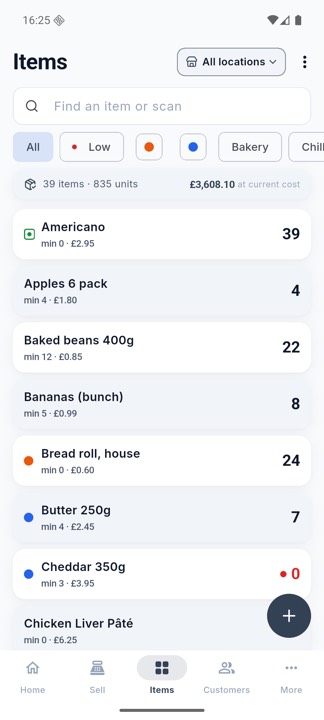
Things without a barcode, like loose cake or a bag of screws you make up yourself, get a sticker: Items, then Labels, tick the items and how many of each, and tap Print. The sheet or roll size is set once under Layout. You do not have to enter everything on day one. A name is enough to start, and a long list in a spreadsheet can be brought in from the computer, covered further down.
The morning delivery
The van comes at half eight. Open Home, then Stock, then Stock in.
Choose where the stock is going at the top, say Stock room for the cases and Shop floor for what goes straight out. Pick the supplier and type the delivery note number under Reference, so you can find this delivery again when the invoice comes. For anything with a date on it, milk, bread, medicines, add the batch or lot and the use-by date. Then scan each item, or find it by name, set how many arrived and what each cost, and tap Add to stock. The numbers go up straight away, in the place you chose.
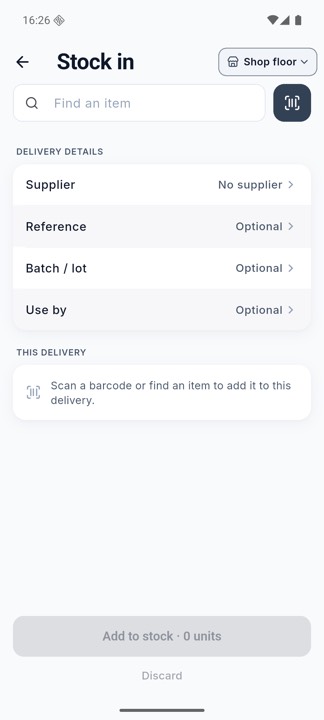
That cost matters: the margin and the stock value come from it, and a supplier’s price rise shows up in the margin report instead of hiding.
Through the day
The Sell tab is the till, built to be quick. Scan the barcode, type part of a name, or tap the item in the list. Plus adds one more, minus takes one off. Whatever is in the sale jumps to the top of the list, so you can see it while the customer is still adding things. The bar at the bottom shows the running total and the tax in it. View sale opens each line to change a price or give a discount. The big Total button takes payment.
Cash is the usual one: type what they gave you, or tap £10, £20 or Exact, and the app shows the change. Card, QR and bank transfer are recorded, not taken. Shop Counter does not process the card; your card machine does that, and the app notes how the sale was paid. Split payment covers the customer with £5 in cash who wants the rest on card.
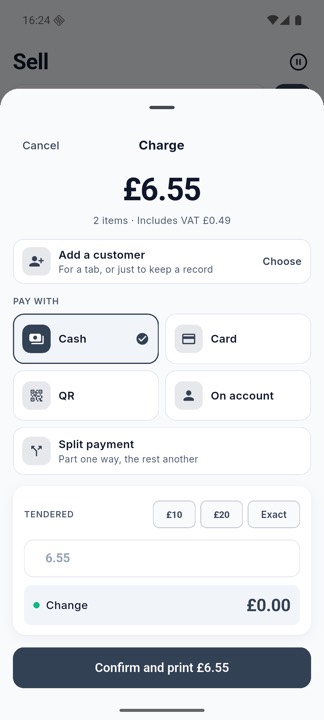
The builder who settles up on Friday gets attached to the sale with On account. It goes on his tab in the Customers tab, where you can see what everyone owes you.
After you confirm, the receipt appears. Print it on a receipt printer, share it by WhatsApp or email, or give none. Most people want none. The builder wants it on WhatsApp. Tap Next sale. Every one of those sales has taken its items off the shelf count, and you did nothing for that to happen.
At the end of the shift there is the other direction: the sandwiches past their time, the jar that got dropped, the biscuits opened for the staff. Open Stock out, pick the reason first (waste, damage, own use, samples), then the items. The stock goes down and the reason is kept, so the shrinkage report at the end of the month says where the money went, not just that it went.
Closing
Open Home, then Sell, then Day book. It shows what you took today: the total, how it was paid (cash, card, QR, on account), the profit, the tax by rate, and every receipt. The arrows take you to other days, and the button at the top saves the day as a PDF or a spreadsheet.
Then the drawer. Cash-up starts in the morning: count the float into the drawer and enter it as the opening amount. All day the app tracks cash sales, refunds, and any cash put in or taken out. At closing, count the drawer and enter what is there. The app shows whether you are over or short.
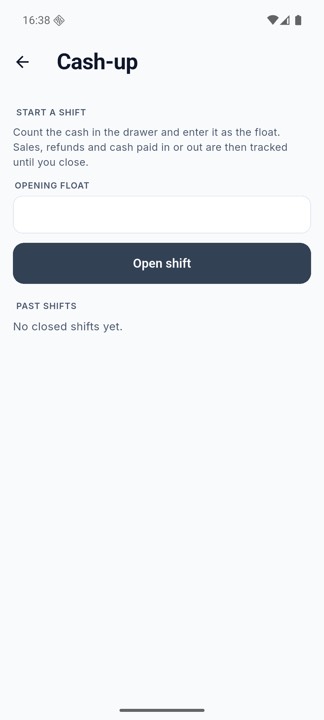
A pound or two either way is change given wrong. Short by the price of something is a sale rung up and not paid, or paid and not rung up. Petty cash, the tin for the milk and the window cleaner, is kept apart so it never muddies the count.
The quiet Tuesday job: counting a shelf
The book says eleven. The shelf says nine. That difference is the reason to count, and with the till and the stock book joined you can count a shelf at a time instead of closing for a day.
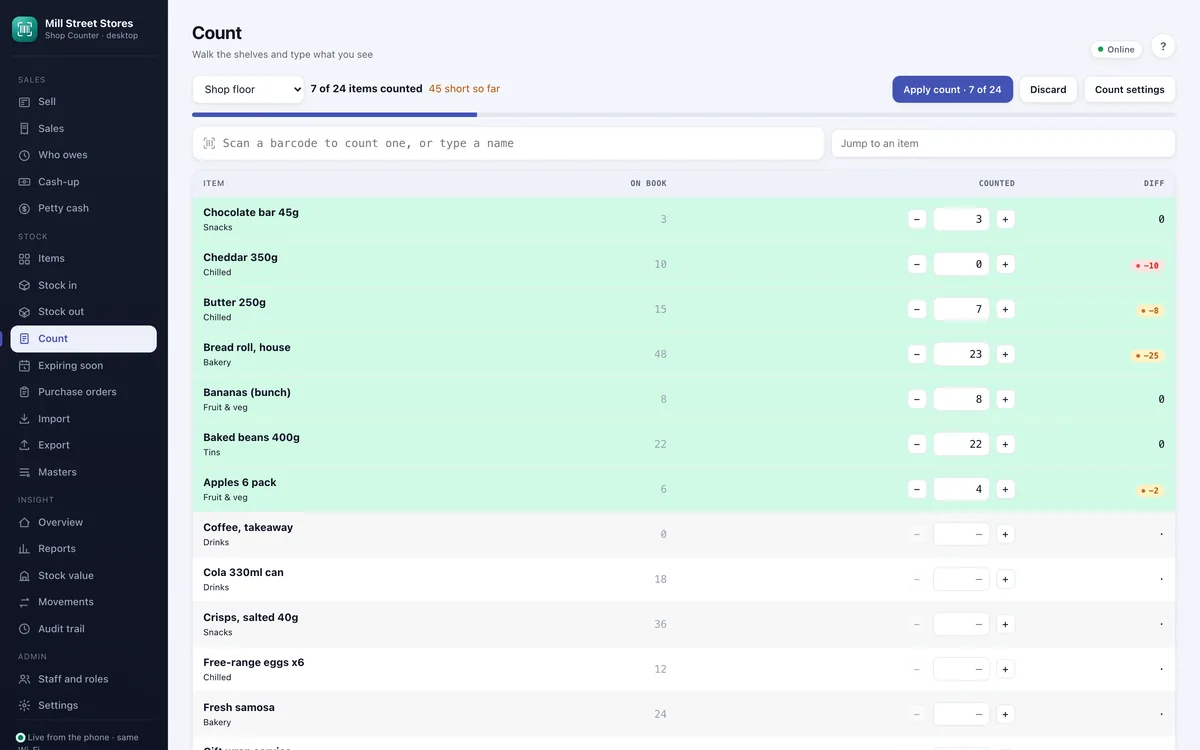
Open Home, then Stock, then Count stock. Every item is listed with the number the app expects, called On book. Count what is really there and enter it with plus and minus, or tap the number and type it. Scan an item to jump to it. Counted items move to the top in the order you counted them, so the rest of the shelf is still waiting below.
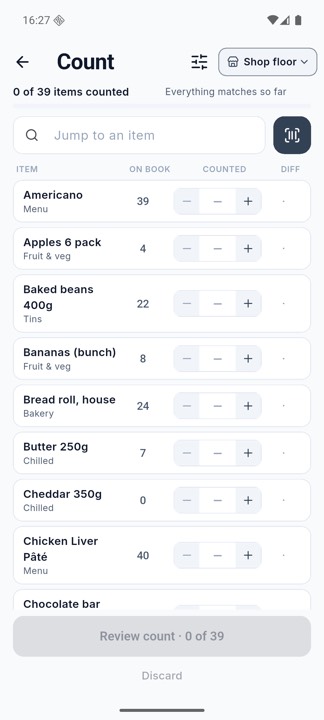
When the shelf is done, tap Review count. It shows only the items that differ. Apply it and the app corrects the stock and keeps a record of the difference, so the shrinkage report can say later how much is walking out of the door and how much is counting mistakes. If staff do the counting, switch on Blind count in the count settings: it hides the expected numbers, so people count what they see. Nobody counts the whole shop every Tuesday. One shelf a week, or the ten items that matter most, keeps the book honest.
Ordering
The Reorder list is everything that has dropped below its minimum, grouped by supplier, with how many to order (the reorder amount you set) and the likely cost from the last delivery. Look at it before the rep calls. Share it as a message or a PDF, or turn one supplier’s part of the list into a purchase order and send it.
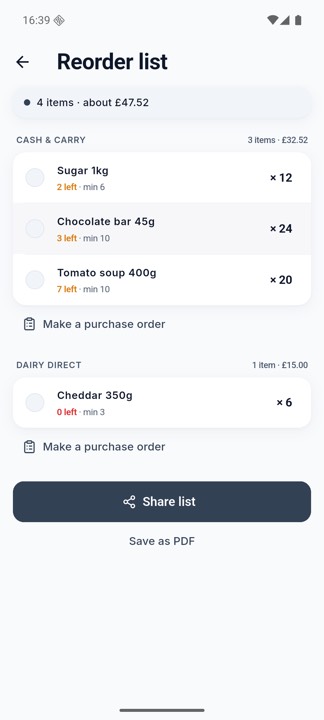
When that delivery arrives, receive it against the order instead of booking it in from scratch: the lines are already there, and you confirm what came. The app also tracks what you still owe the supplier, handy when the statement arrives.
Expiring soon is the other list to check when the shop is quiet. It shows items with a use-by date near or past, from the dates entered at Stock in. Move them to the front, mark them down, or take them off with Stock out before a customer finds them.
Looking at the week
Open Home, then Reports. The Overview shows sales, cost, profit and tax for today, the last 7 or 30 days, this month, this year or your own dates, with a chart by day, how many receipts, and your best sellers.
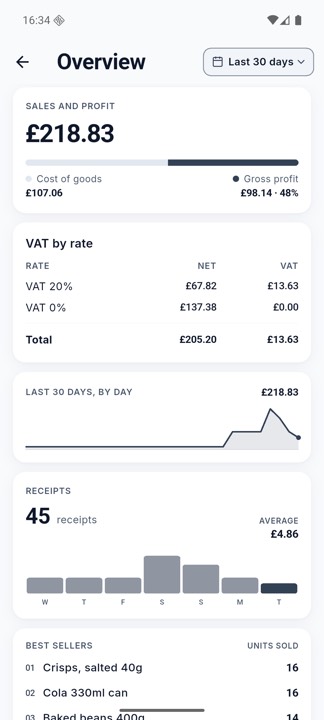
The others answer a shopkeeper’s questions. Margins shows what you earn on each item and which are sold below cost, usually because the supplier’s price went up and the shelf price did not follow. Slow movers shows the stock that is not selling and the money sitting in it. Stock-outs shows the empty shelves. Stock value at a date is what the shelves were worth on any day, which the accountant asks for at year end. What to change comes out of those: the lines sold below cost get a new price, the slow mover is not reordered, and the thing that keeps stocking out gets a higher minimum.
The office job, on the computer
Some of this is easier at a keyboard: editing fifty prices, bringing in the wholesaler’s spreadsheet of items, counting the stock room with a scanner, reading a month’s reports. For that there is Desktop access, which opens your shop in an ordinary web browser on a computer on the same Wi-Fi.
Nothing goes over the internet. The phone serves the page itself, so there is no account, no cloud service, and nothing to install on the computer. To connect:
- On the phone, open Home, then Shop and settings, then Desktop access, and tap Start.
- The phone shows an address, a QR code and a six-digit pairing code.
- On the computer, type the address into the browser, or scan the QR code with its camera.
- Type the pairing code when the browser asks. You do this once for each browser.
- Tap Stop on the phone when you are done.
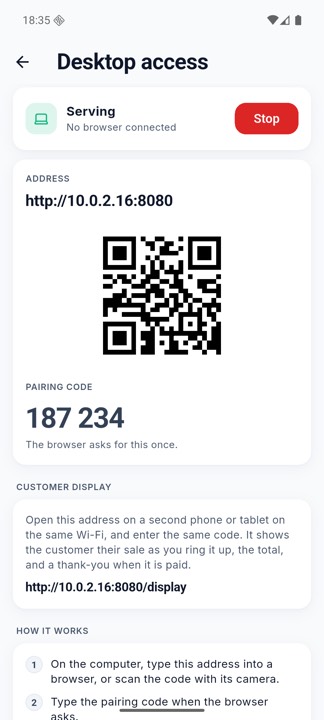
The browser then shows the same shop as the phone, live. A sale rung up on either appears on both, and stock booked in at the keyboard is on the phone when you walk back to the counter.
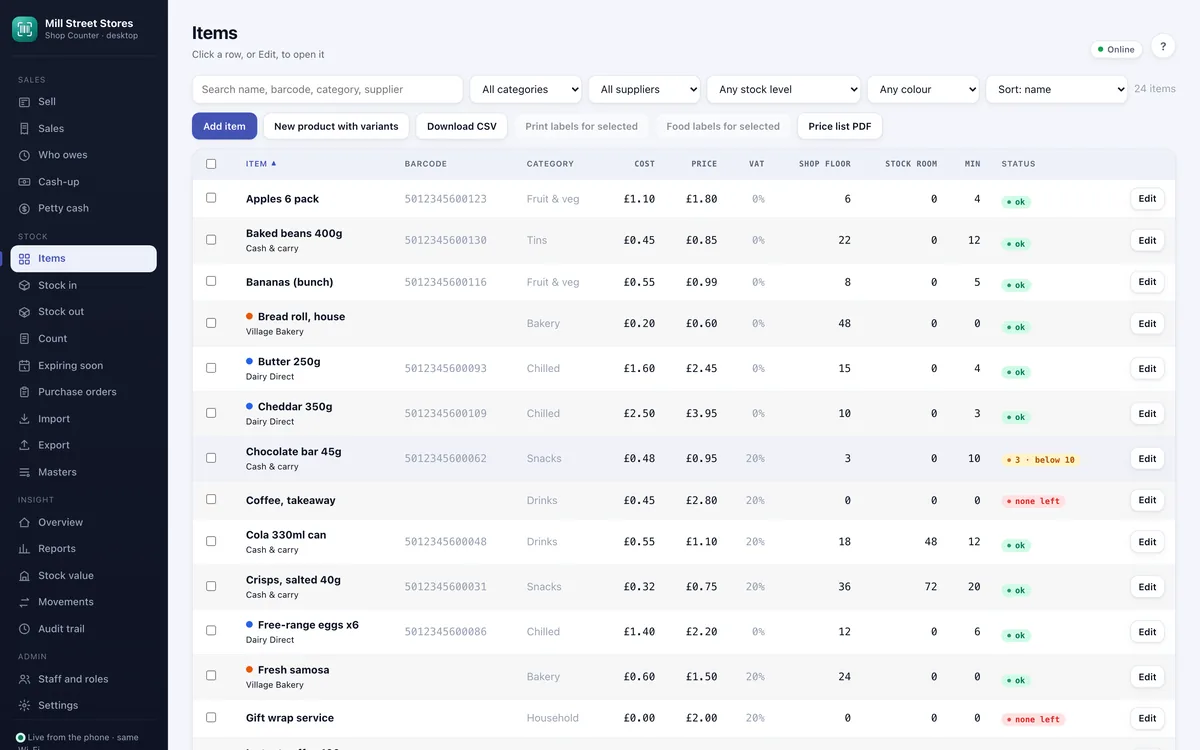
What is quicker there:
- Items as a sortable, searchable table with cost, price, tax, stock in each place and a status, so a price round takes minutes. Shelf labels and a price list print from it.
- Import brings a whole item list in from a spreadsheet.
- Stock in and Count at a keyboard. Counted items jump to the top and show how far out they are.
- A second till, with a USB barcode scanner (it types the barcode for you) and a receipt printer.
- Expiring soon, Purchase orders and the reports, with room to read them, and a full backup downloaded to the computer.
What it costs, plainly: Shop Counter is free, and the free version shows an advert now and then, including one on the Desktop access screen. The yearly ad-free subscription removes the adverts, opens Desktop access in full, and adds exports, the CSV, PDF and XML files of reports and lists. Receipts, invoices and backups are free on every plan.
Keeping it safe
Everything is on the phone, which is the point and also the risk. A lost or broken phone loses the shop unless there is a copy somewhere else. Open More, then Backup. Save a copy of everything makes one file and opens the share sheet, so you can put it on a drive, email it to yourself or keep it on the computer. Set the reminder to weekly. Copies kept on the phone help after a bad update but not after a theft, so they are never enough on their own. A habit that works: the backup file goes to the computer every Friday, right after the cash-up.
That is the week
Delivery in, sales out, drawer counted, a shelf checked, an order sent, a look at the numbers, a copy saved. None of it is new; it is what every small shop has done with a notebook and a calculator. The difference is that the notebook and the till are the same thing now, so the book is right while you serve.
Shop Counter is free on Google Play and the App Store, at brightscalelabs.com/apps.
Counting the shelves is covered in more depth in how to do a stocktake in a small shop, with a free count sheet.