Plain Estimate: how to use it
A plain guide for the person doing the quoting. Each part says what to tap, with a screenshot of the real app, and part 15 shows Desktop access, your book in a web browser. The screens show a made-up business, Northgate Plumbing & Heating.
1. What Plain Estimate is
Plain Estimate is for people who quote standing up: electricians, plumbers, builders, landscapers and anyone else who works alone or with a small crew. You write the estimate on your phone while you are still in the room, hand the phone over for a signature, book the job in, do the work, turn the estimate into an invoice, and record the payment when it arrives. The app also tells you, at a glance, what you are owed and who is late.
Everything is kept on your phone. There is no account to make, nothing to sign in to, and no monthly fee. A document leaves the app only as a PDF that you send yourself, by email, WhatsApp, Messages or anything else on the phone.
Good to know. Everything in this guide works on the free version, with no cap on estimates, invoices, clients, prices or photos. The free version shows one banner and a short advert when you print, share or save a PDF. The yearly subscription removes the adverts and the small “made with” line on what you send, unlocks all 107 document designs and the accountant exports, and opens writing from a computer. Backups are always free. Details are in part 18.
2. Finding your way around
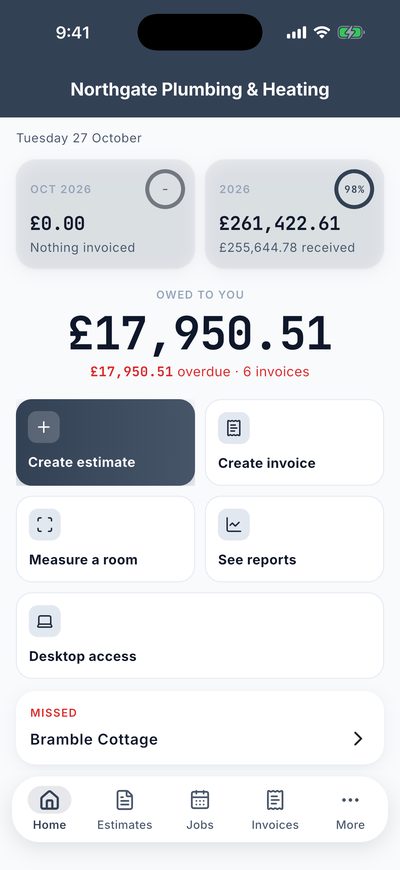
Five tabs run along the bottom:
- Home: what you are owed, this month and this year, what needs you, and tiles for the jobs you do most.
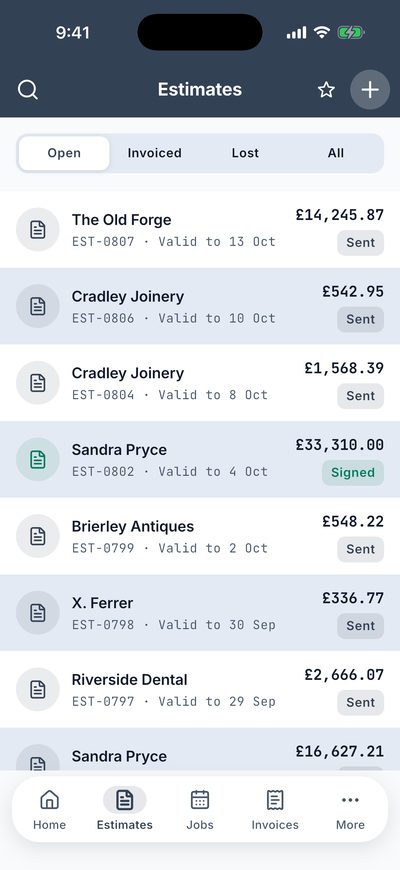
- Estimates: every quote, newest first, with a filter for Open, Invoiced, Lost and All.
- Jobs: the diary of work you have booked, with anything you missed at the top.
- Invoices: everything you have billed, with Unpaid, Overdue and Paid filters and the total you are owed.
- More: clients, your prices, repeating invoices, your business details, reports, backups and settings.
On Estimates, tap a line to open it, tap the round plus button to start a new one, and tap the magnifying glass to search by client, number or status. The coloured chip on the right says where each one stands: sent, signed, or lost. Invoices works the same way, with a running total at the top of what is owed and how much of it is overdue.
3. Setting up your business
Before the first estimate, open More, then Business, then Business details. What you type here prints at the top of every document.
- Business name, email, phone and address: the letterhead.
- VAT or tax number: printed beside your details. The word changes with your country: VAT, GST, sales tax.
- Footer line: one line at the foot of every estimate and invoice, such as a Gas Safe number or a thank you.
- Logo: a picture, or your initials in a coloured square.
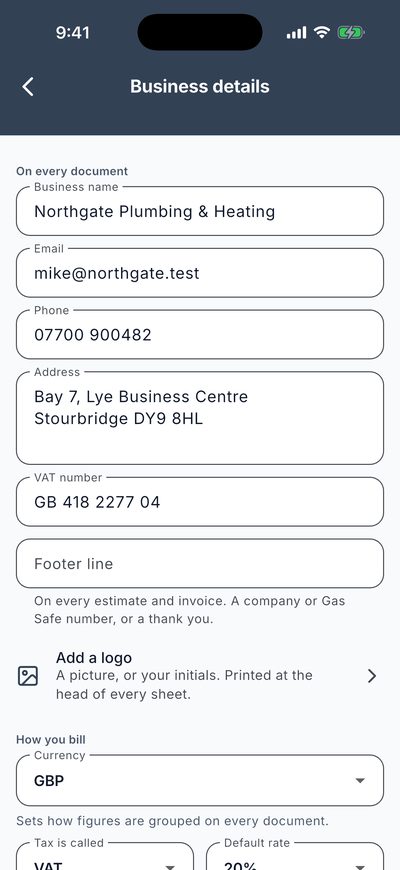
- Currency: every figure on a document is shown in this currency, whatever the phone itself is set to.
- Tax is called, default rate and the list of rates: set the rates you actually charge, for example 0%, 5% and 20%.
- Prices include tax: switch it on if you quote homeowners, who only care about the final figure. Leave it off if you quote businesses and add tax on top.
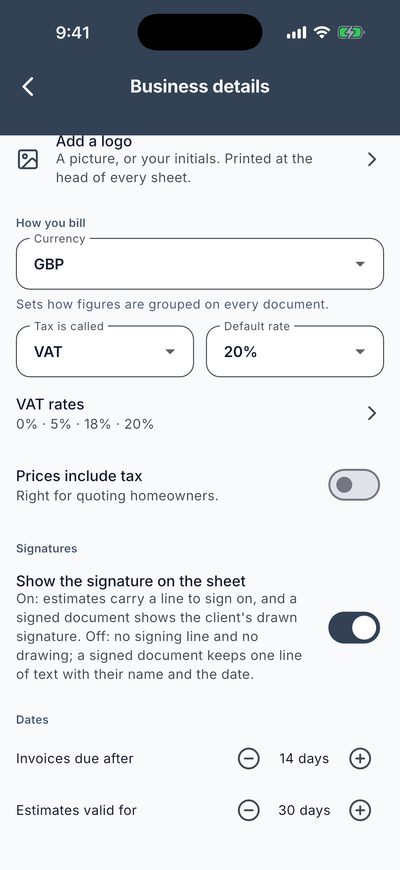
- Show the signature on the sheet: on, an estimate carries a line to sign on and a signed document shows the drawn signature. Off, there is no signing line and a signed document keeps one line of text with the name and date.
- Invoices due after, estimates valid for: the number of days put on every new document.
Then open Payment details and QR. Write your bank details the way you would read them out over the phone, and add a payment link if you have one (a PayPal.me or bank page, for example). The link turns into a QR code on your invoices. The app never takes payment itself; it only shows the details you typed.
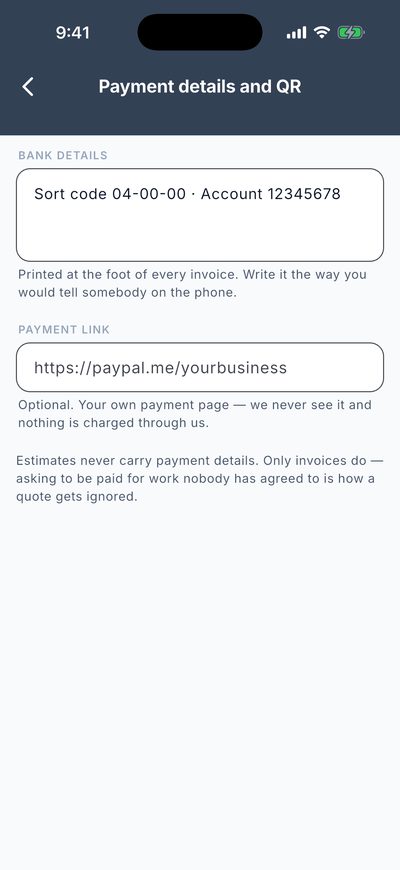
Good to know. Want to look around first? More, then Getting started, offers five years of a made-up business to try, and a two-minute tour of every screen. Delete the demo from the same place when you are ready, and your own work comes back.
4. Your prices: the catalog
Set your prices once and tap them into every estimate. Open More, then Documents, then Catalog.
- Tap the round plus button.
- Choose Labour or Material, then type the name, for example “Combi boiler supply and fit”.
- Enter the rate, pick the unit (each, hour, day, metre, square metre and so on), the tax rate and a category.
- Tap Save.
You can also add a cost for each item, which is what it costs you. The app uses it to show your margin in Reports, and it never prints on a document.
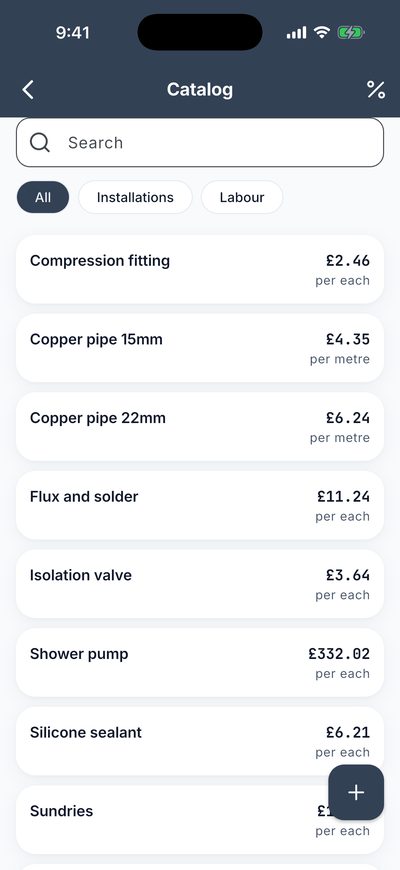
Good to know. A price copied into an estimate stays as it was when you typed it. Changing the catalog later never alters a document you have already written.
5. Writing an estimate
Tap the plus on the Estimates tab, or Create estimate on Home.
- Choose the client, or tap New client and type their name, phone, email and address. You can leave the client out and add it later.
Clients you have used before are in the list. Type in the search box to find one.
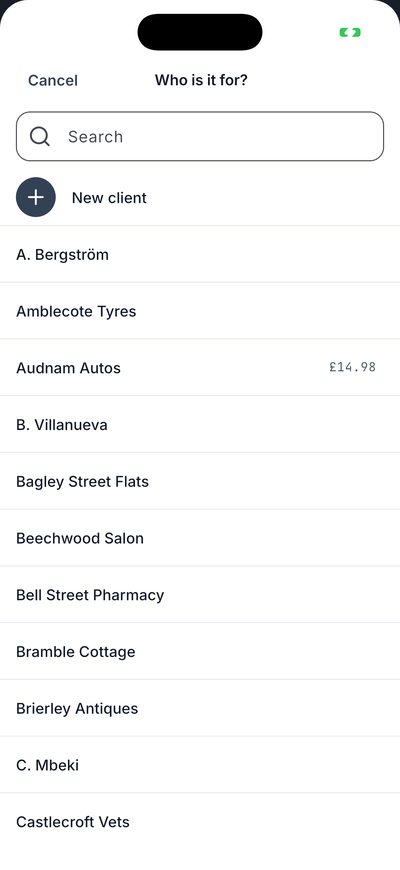
- Tap Add item.
- Tap the prices you need. The plus and minus beside each one set how many. Several can go in at once.
- Or type a new price in the search box, and the app offers to add it as a one-off line.
- Tap the button at the bottom, which says how many you chose.
Tap a line afterwards to change its description, quantity, rate, unit or tax. Use Change the order in the menu to move lines around.
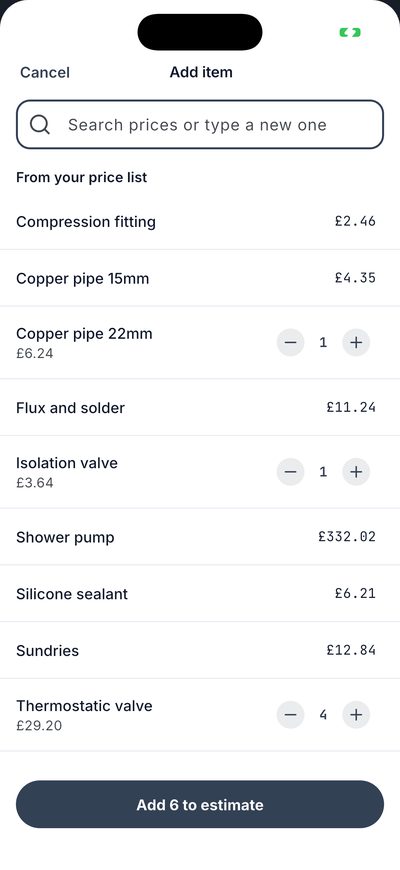
Group lines under headings with Add section: “Boiler and heating”, “Bathroom”, “Kitchen”. Each section shows its own subtotal, so the customer can see what each part of the job costs. Below the lines the app works out the subtotal, any discount, the tax and the total for you.
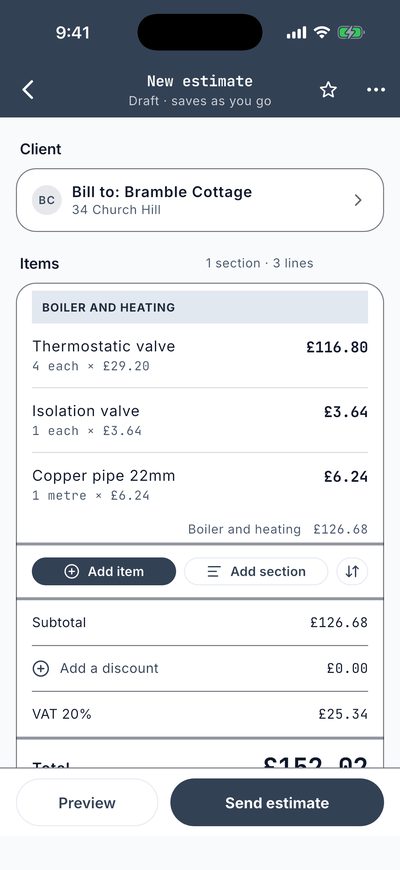
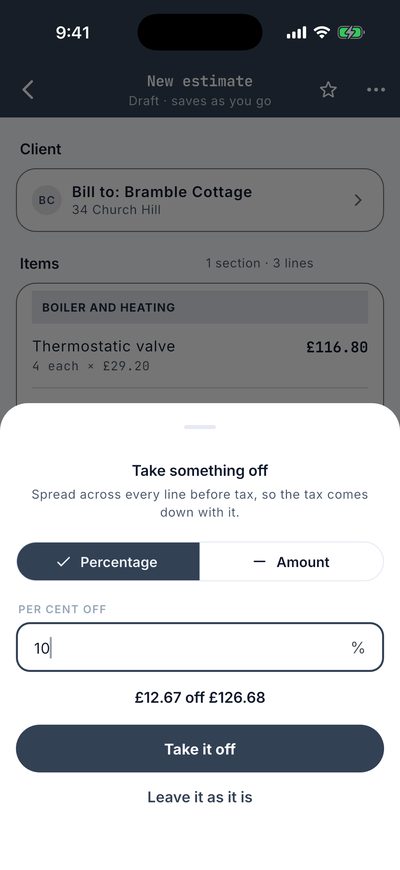
To take something off, tap Add a discount. Choose a percentage or an amount. The discount is spread across every line before tax, so the tax stays correct.
Scroll down for the rest:
- Details: the issue date and the valid-until date, a note for the client, and a footer line for this document only.
- Photos: add pictures of the job from the camera or your library. Switch on “Print on the document” to put them on the sheet.
- Costs: record what a job cost you. Scan a receipt, or add a cost by hand. Costs feed the margin in Reports and never print on a document.
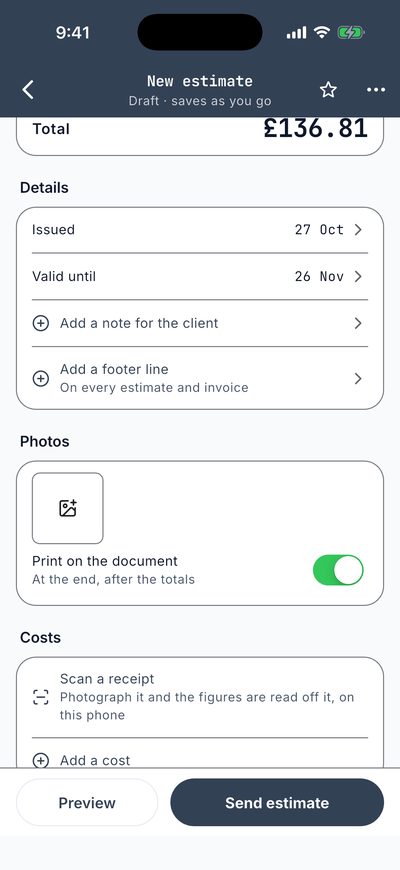
Good to know. A new estimate starts as a draft and saves as you go. It gets its number (EST-0809, for example) when you send it. Numbers run in order without gaps.
6. Seeing it, and choosing the look
Tap Preview to see the page exactly as the client will get it. Pinch or double-tap to zoom. Print and share are along the bottom.
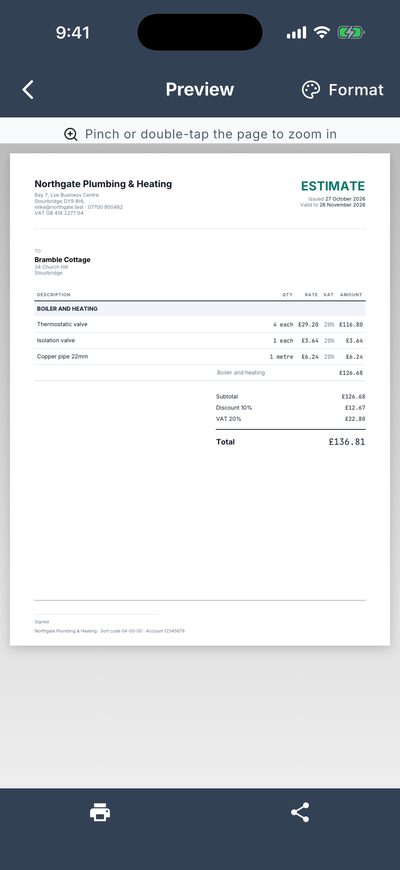
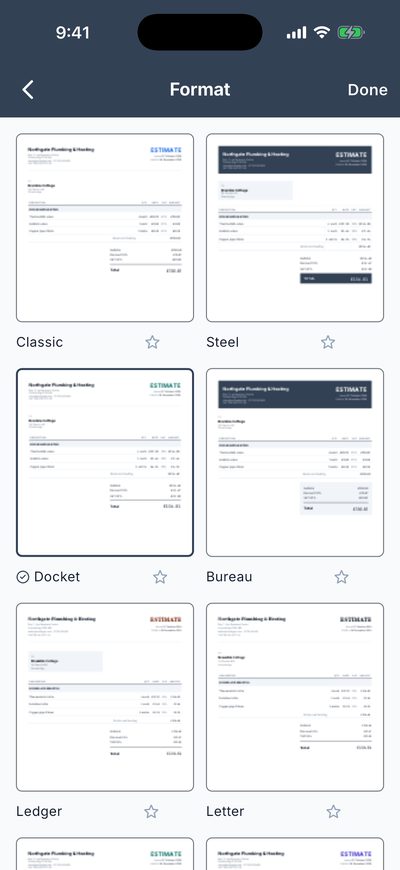
Tap Format to pick a design. There are 107 in all, from plain dockets and ledgers to letters and bureau layouts. Classic and Steel are free and complete. The rest come with the subscription. The design you pick is kept for that document.
7. Sending it, and getting it signed
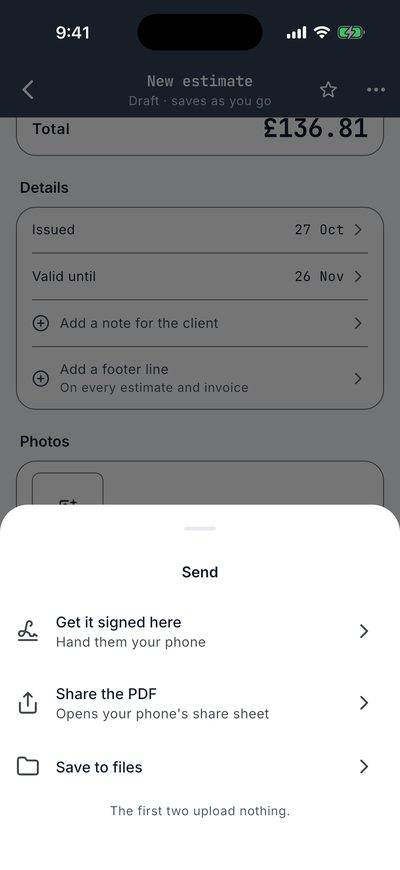
Tap Send estimate. The sheet gives three choices:
- Get it signed here: hand the customer your phone to sign on the spot.
- Share the PDF: opens your phone’s own share sheet, so you can send it by email, WhatsApp, Messages, AirDrop or anything else.
- Save to files: keeps a copy on the phone or in a folder.
The first two upload nothing to us. The PDF goes only where you send it. Sending marks the estimate as sent and gives it its number.
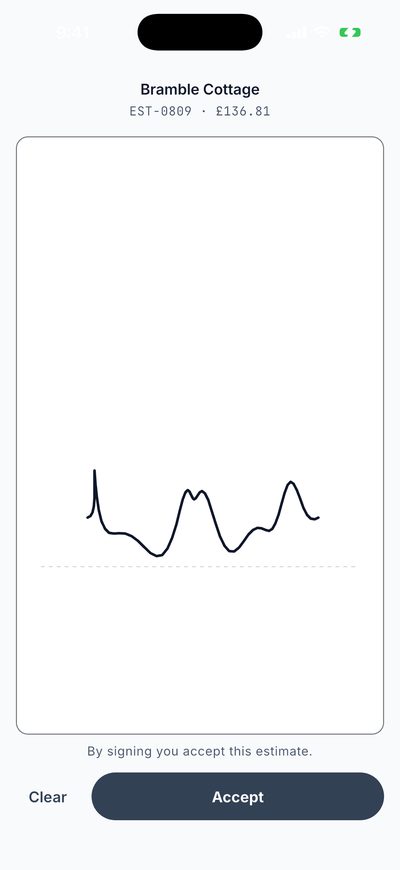
When the customer signs, they draw with a finger, then tap Accept. The wording underneath says that by signing they accept this estimate. Tap Clear to start again.
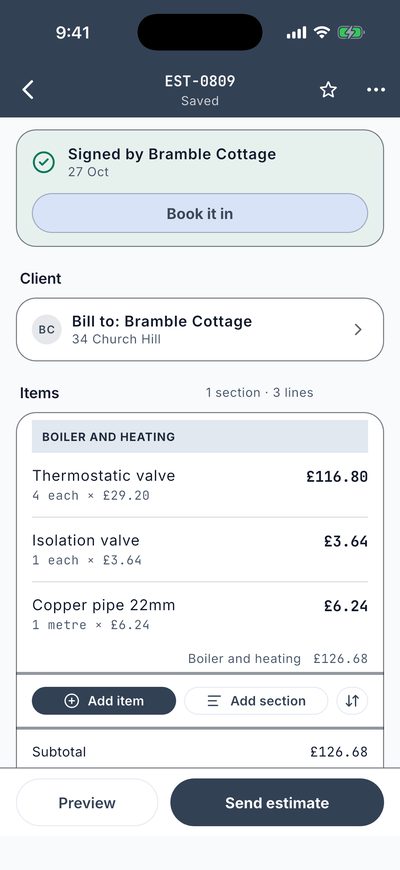
The signature is kept with the estimate, and the estimate shows as signed, with Book it in underneath. Signatures are never removed by the Storage clean-up, because they are the record of what was agreed.
8. Booking the job
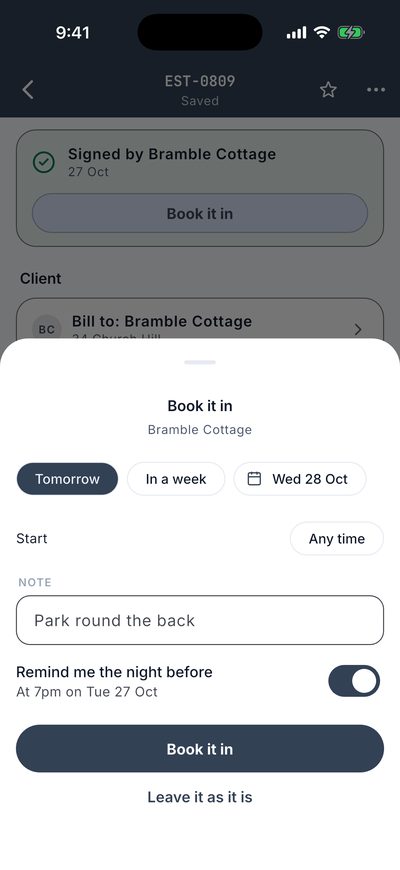
Tap Book it in on a signed estimate. Choose Tomorrow, In a week, or any date, a start time if you want one, and a note such as “Park round the back”. Leave Remind me the night before on and the phone reminds you at 7pm.
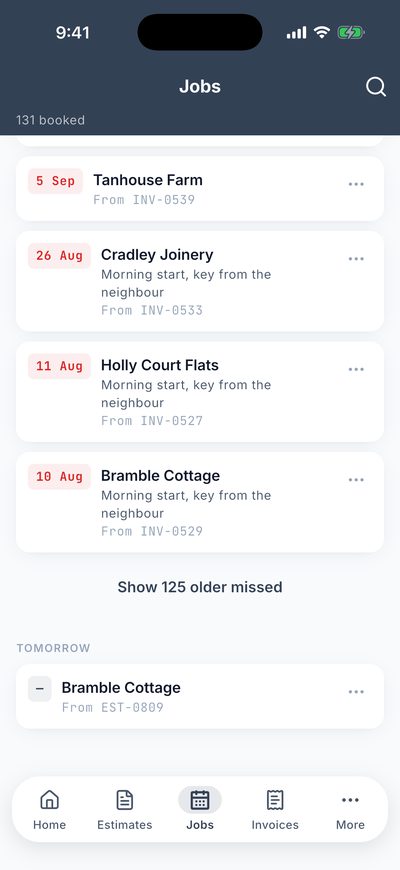
The Jobs tab is your diary. Visits you missed are at the top in red, then today, tomorrow and the days ahead. Each job has a three-dot menu for the things you do to it, such as moving it or marking it done.
When the work is done, tap Mark done on the estimate, then turn it into an invoice.
9. Turning an estimate into an invoice
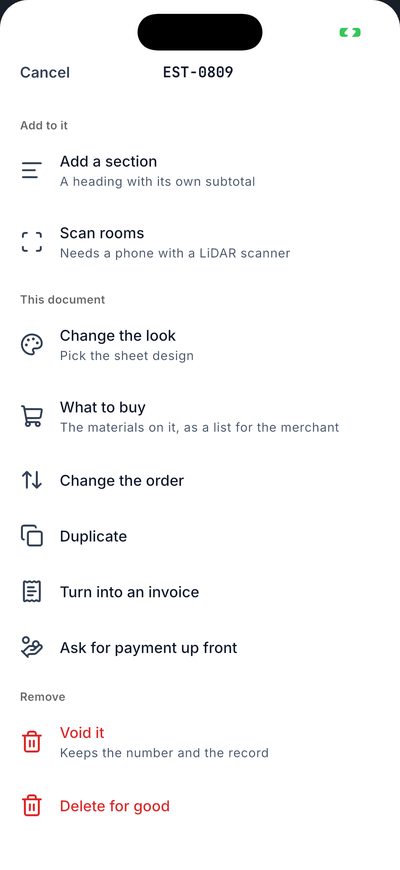
On any estimate, tap the three dots at the top, then Turn into an invoice. The menu also holds Add a section, Change the look, What to buy (the materials on the estimate as a shopping list for the merchant), Change the order, Duplicate, Ask for payment up front (a pro forma), Void and Delete.
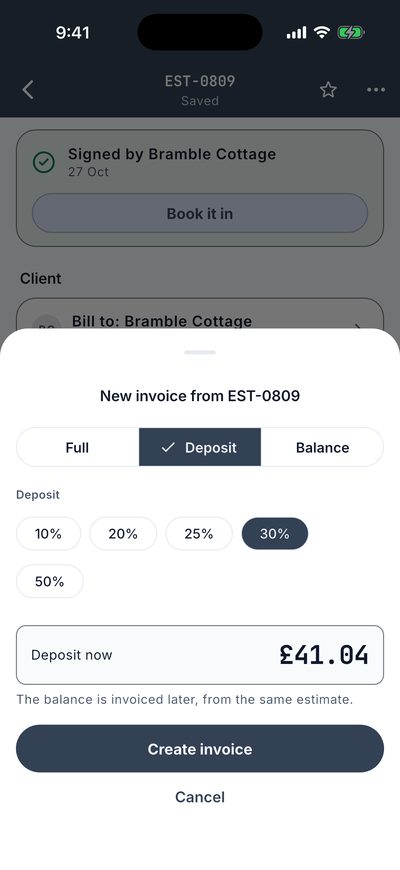
Choose how much to bill:
- Full: the whole estimate, line for line.
- Deposit: 10, 20, 25, 30 or 50 percent now. The balance is invoiced later, from the same estimate.
- Balance: what is left after a deposit.
An estimate knows which invoices came from it, and an invoice knows which estimate it came from, so nothing is billed twice.
Other kinds of document
- Pro forma invoice: asks for payment before the work. Once it is paid, raise the real invoice from it. Find them in More, Documents, Pro forma invoices.
- Credit note: on an invoice, choose Credit this invoice to undo a mistake. The app will not let you credit more than was billed.
- Void: keeps the number and the record but takes the document out of your figures.
- Duplicate: copies a document to a new draft, for work you do again and again.
10. Getting paid
The Invoices tab shows what you are owed at the top, and who is late. The Overdue filter shows only the late ones, each with how many days late. Tap Ask for it and a polite message is written for you, ready to send from the share sheet: the invoice number, how late it is and how much is outstanding.
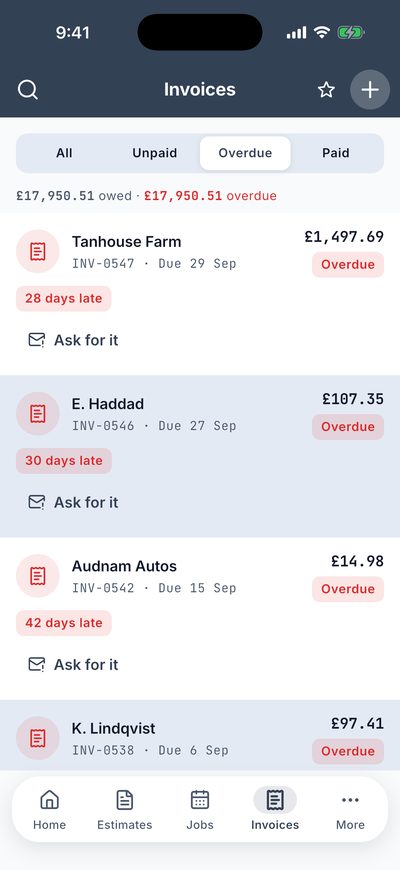
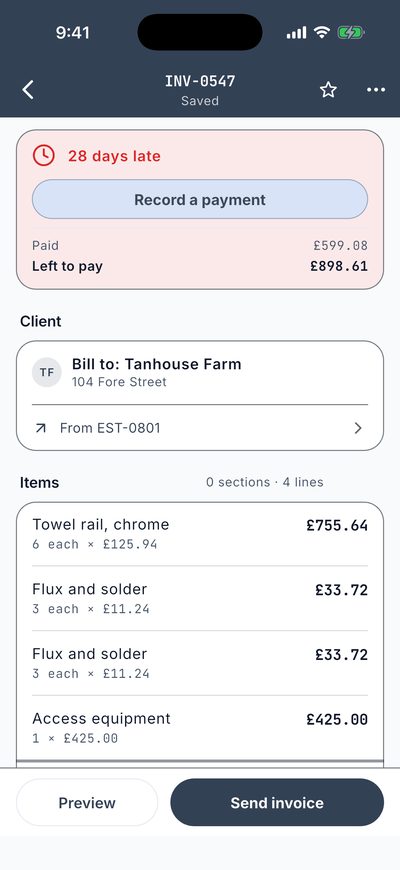
Open an invoice to see how it stands: how late, what has been paid and what is left to pay, and the estimate it came from.
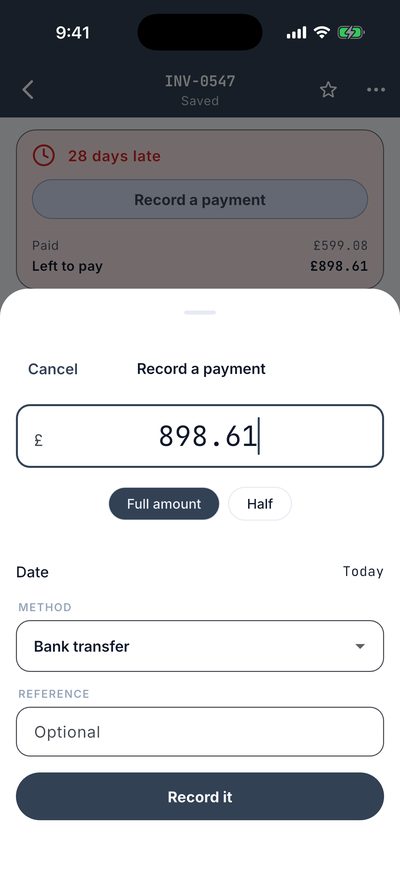
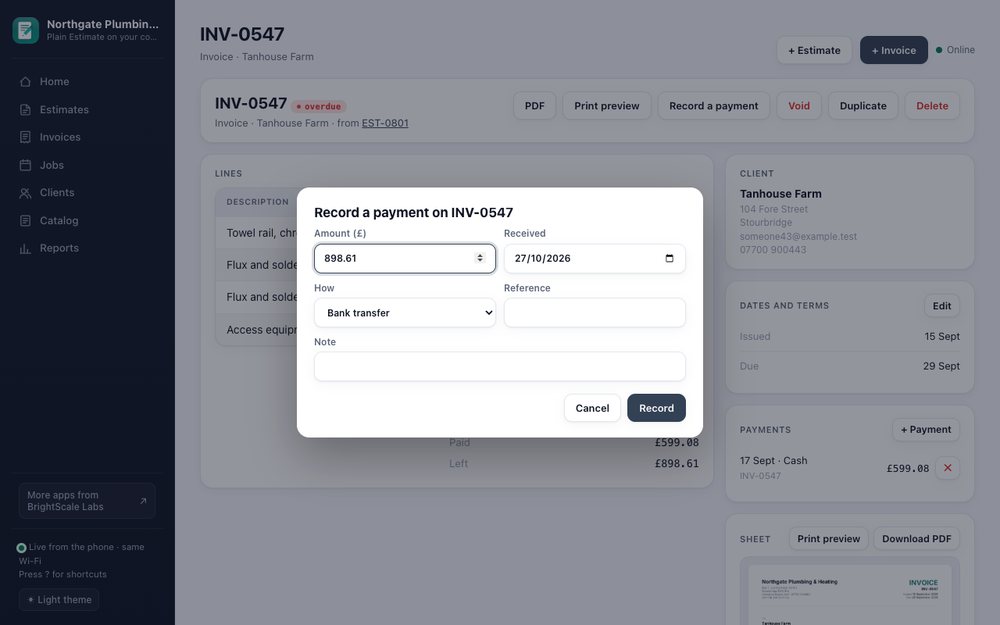
When money arrives, tap Record a payment. The amount starts as what is left; tap Half or type any other amount for a part payment. Choose the date, how it was paid (bank transfer, cash, card and so on) and a reference if you want one, then tap Record it. An invoice you have paid in full turns to Paid. A payment recorded by mistake can be removed from the invoice.
Good to know. The app does not take payments. Recording a payment writes down money that has already reached you somewhere else.
11. Clients
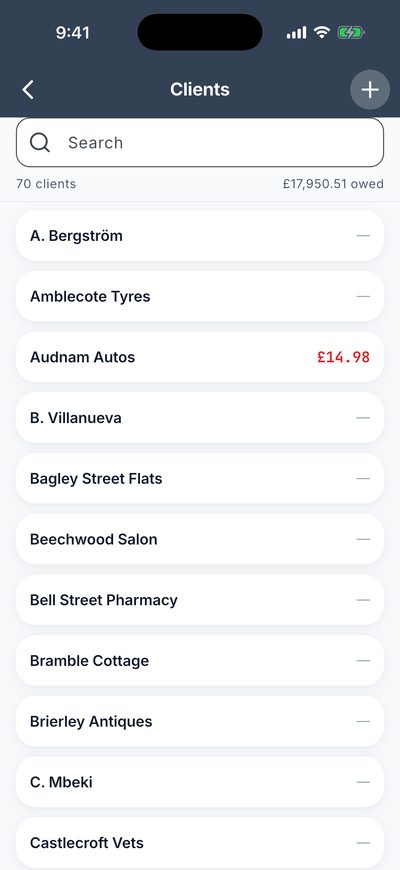
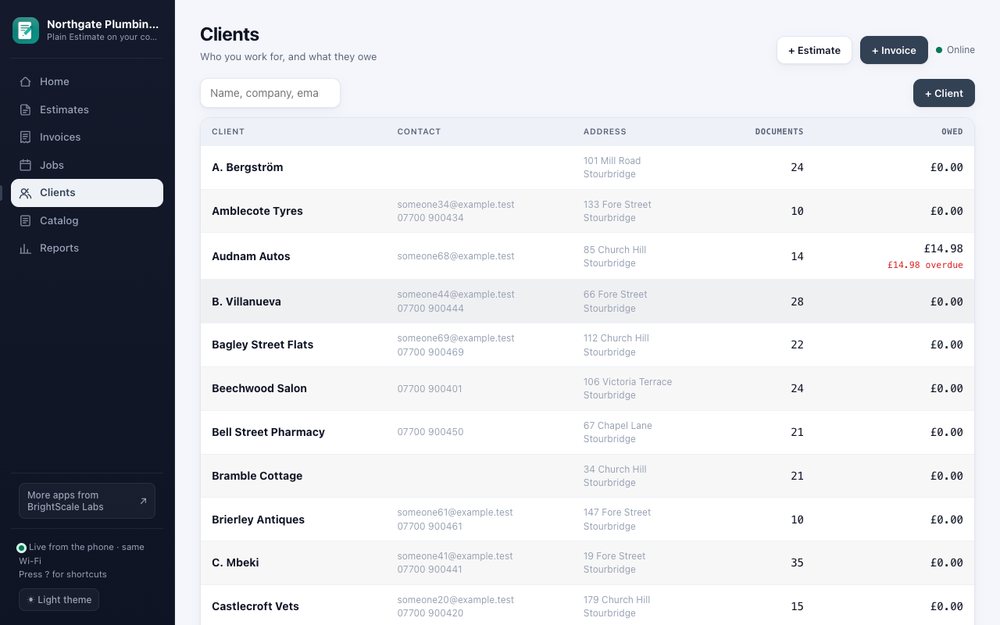
More, then Documents, then Clients lists everyone you work for, with what each one owes in red. Tap a client to edit their name, company, email, phone, address and tax number. In the browser, the client table also shows how many documents each one has.
12. Repeating invoices
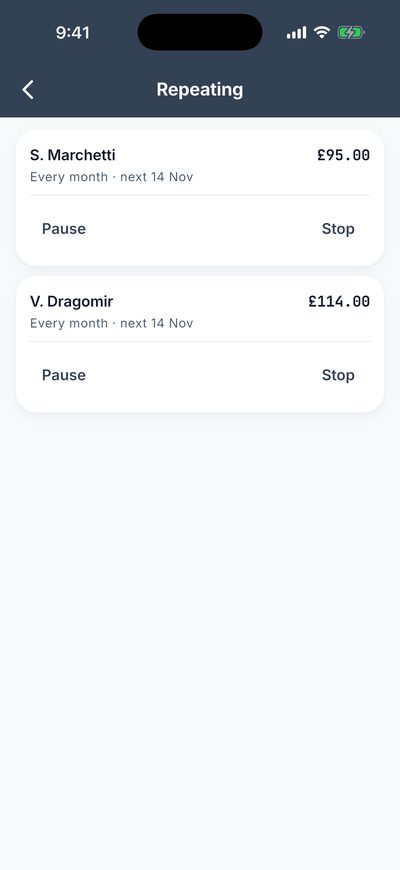
For work you bill on a schedule, such as a monthly maintenance contract, open an invoice, tap the three dots and choose Bill this again. Choose weekly, monthly, quarterly or yearly. The app prepares a draft on each date, ready for you to check and send. See and pause them under More, Documents, Repeating.
13. Measuring with the camera
On an iPhone or iPad with a LiDAR scanner (the Pro models), Measure a room on Home, or Scan rooms from an estimate, walks you round a room with the camera. It comes back with the floor area, the wall area, the doors and windows, the distance round the room, and a plan. Add a room to an estimate and each room becomes a section, ready for you to price by the square metre.
You can also tape a single length with the camera, which gives a line priced by the metre. Everything you measure is kept under More, Documents, Measurements, and a measurement sheet (PDF) can be printed or shared. A scan that did not finish cleanly is marked as rough. Always check against the room before you quote.
14. Reports
See reports on Home, or More, Business, Reports. Choose This month, 12 months, or your own dates. You see:
- Invoiced and received: billed against money in.
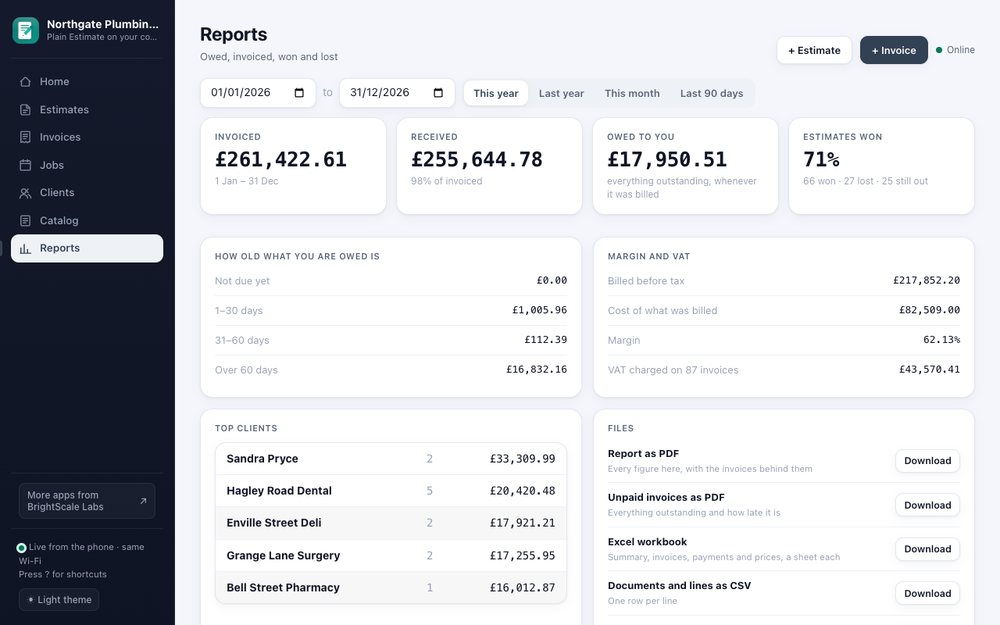
- Owed to you: everything outstanding, split by how old it is: not due yet, 1 to 30 days, 31 to 60 and over 60.
- Estimates: how many you won of those decided, by count and by value, how many are still out and how long clients take to decide.
- Margin: billed before tax against what it cost you, when you have entered costs.
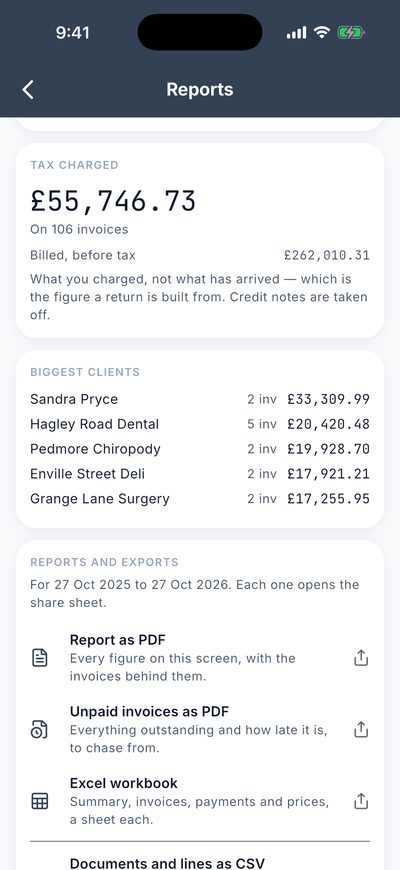
- Tax charged: what you charged, which is what a tax return is built from. Credit notes are taken off.
- Biggest clients: who is worth most.
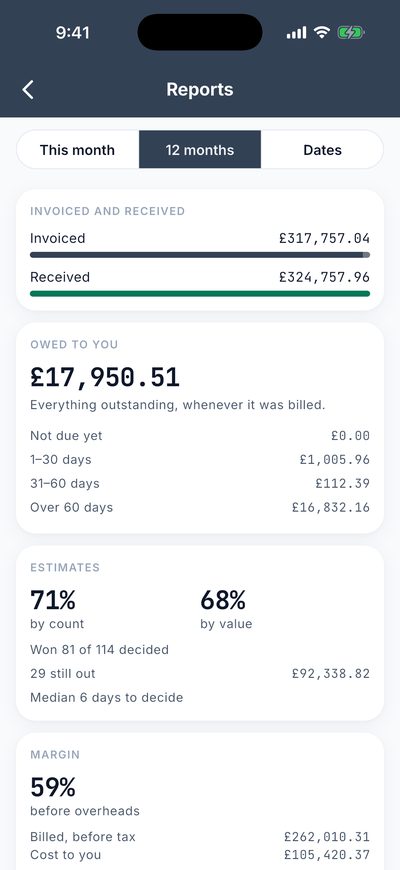
At the foot are the files for your accountant, for whatever dates you chose: a PDF report with every figure and the invoices behind it, an unpaid invoices PDF, an Excel workbook with a sheet each for the summary, invoices, lines, payments and prices, and CSV files of documents, payments and your price list. These come with the subscription.
15. Desktop access: your book in a browser
Desktop access lets you use your book from a computer, on the same Wi-Fi, in an ordinary web browser. It is the quick way to write a long estimate with a keyboard, tidy the catalog, look at the whole year’s figures on a big screen, or print a sheet. The phone serves the page itself. Nothing goes over the internet, and there is nothing to install on the computer.
Connecting
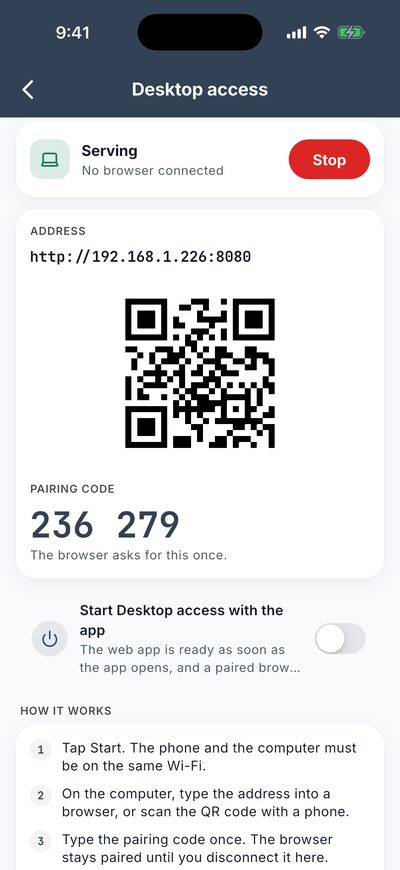
- On the phone, open More, Business, Desktop access (or the tile on Home) and tap Start.
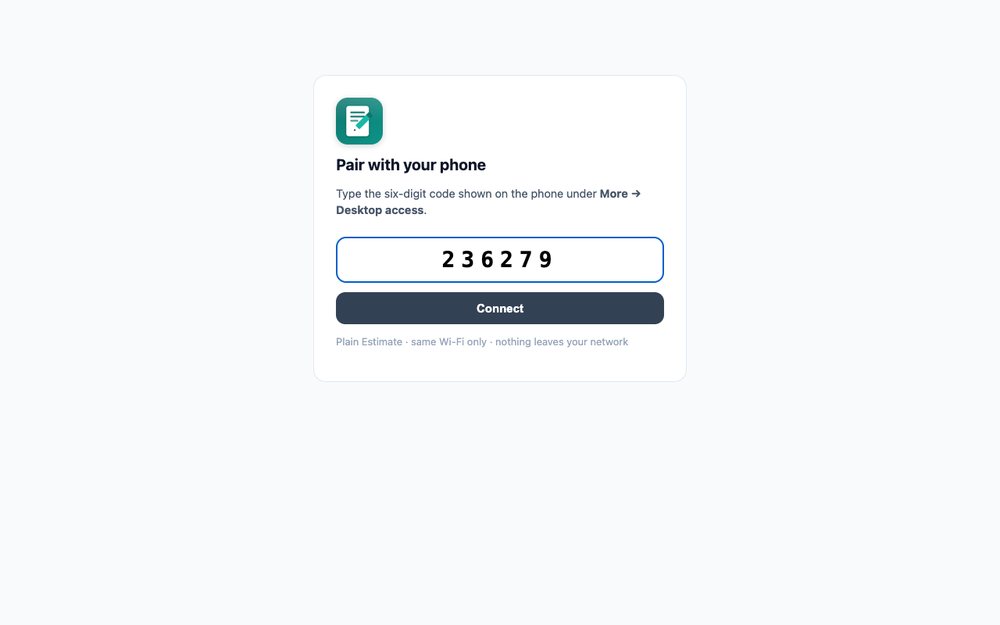
- The phone shows an address, a QR code and a six-digit pairing code. The phone and the computer must be on the same Wi-Fi.
- On the computer, type the address into a browser, or scan the QR code with a phone camera.
- Type the pairing code. You only do this once for each browser; it stays paired until you disconnect it.
- Tap Stop on the phone when you are done.
Switch on Start Desktop access with the app if you would like it ready every time the app opens. The phone screen stays awake while it is serving, and only computers on your Wi-Fi that have the code can reach it.
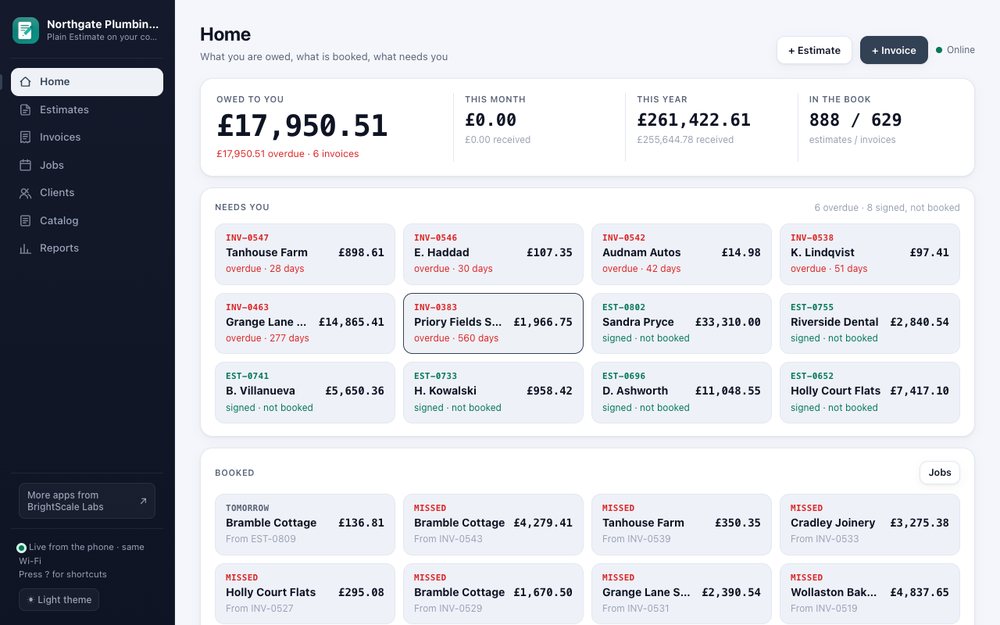
Home
Once paired, the browser opens your book. The menu down the left holds Home, Estimates, Invoices, Jobs, Clients, Catalog and Reports. Press the number keys 1 to 7 to jump between them, and press the question mark for the shortcuts. The page shows the same book as the phone, live: change something on either and the other updates by itself. The Online light at the top right says whether the phone is answering.
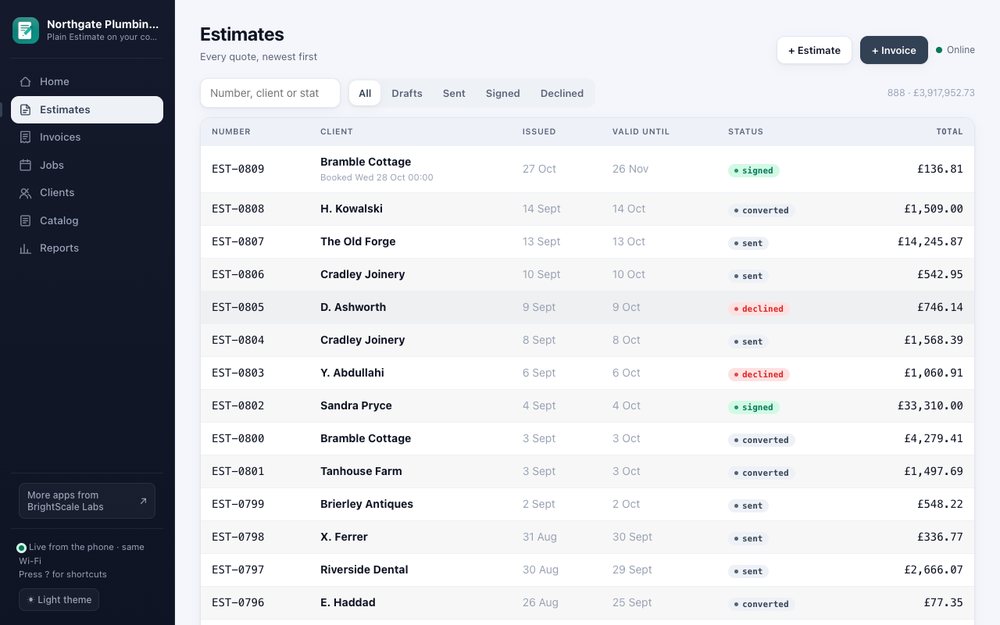
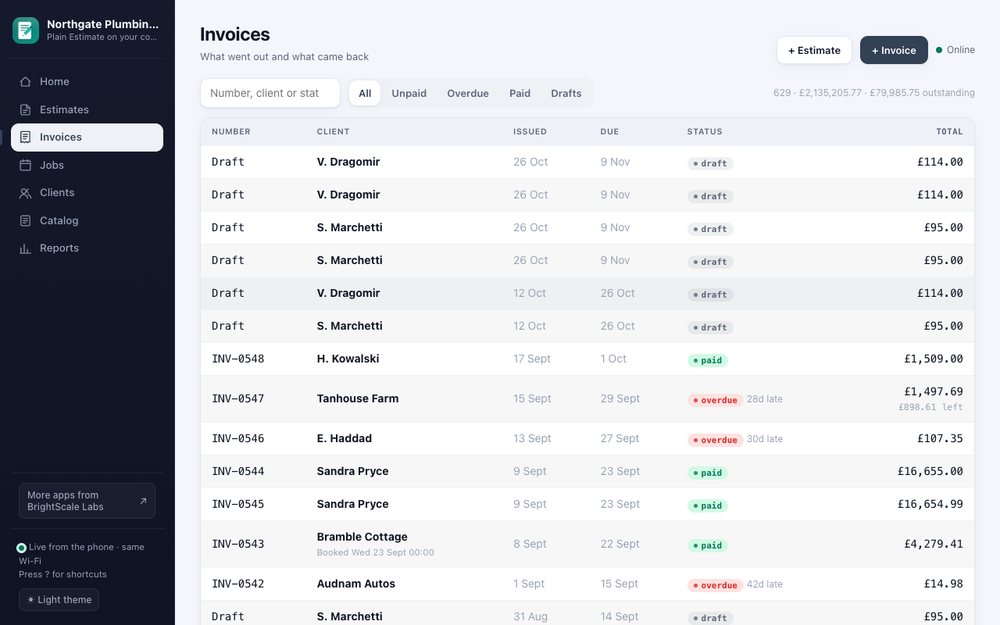
Estimates and invoices
The lists are tables you can search and filter, with a total at the top. Click a row to open it.
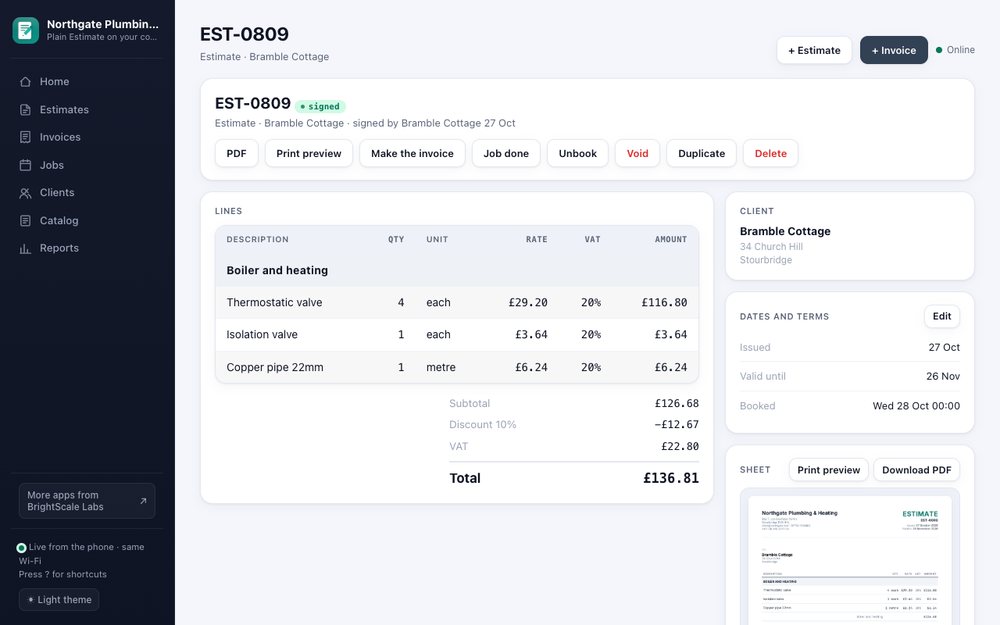
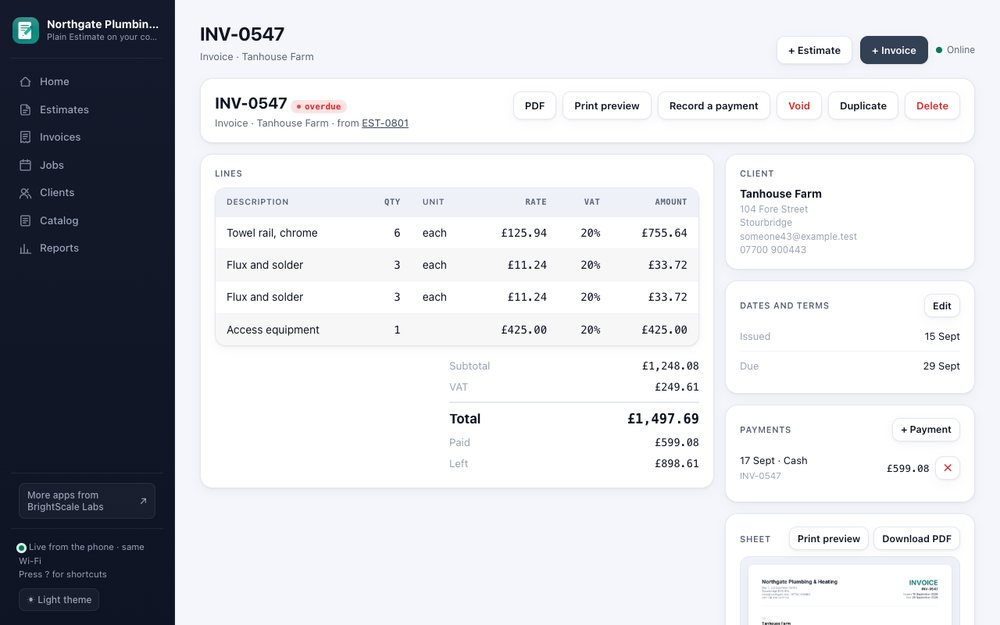
An open document shows its lines, the totals, the client, the dates and terms, any payments, and a small picture of the printed sheet. The buttons along the top do the same things as the phone: PDF, Print preview (the sheet opens in a new tab, ready to print), Make the invoice, Book the job, Job done, Record a payment, Declined, Void, Duplicate and Delete. On a draft, you can type lines into a table and press + Add line, or press Enter.
Jobs, clients and prices
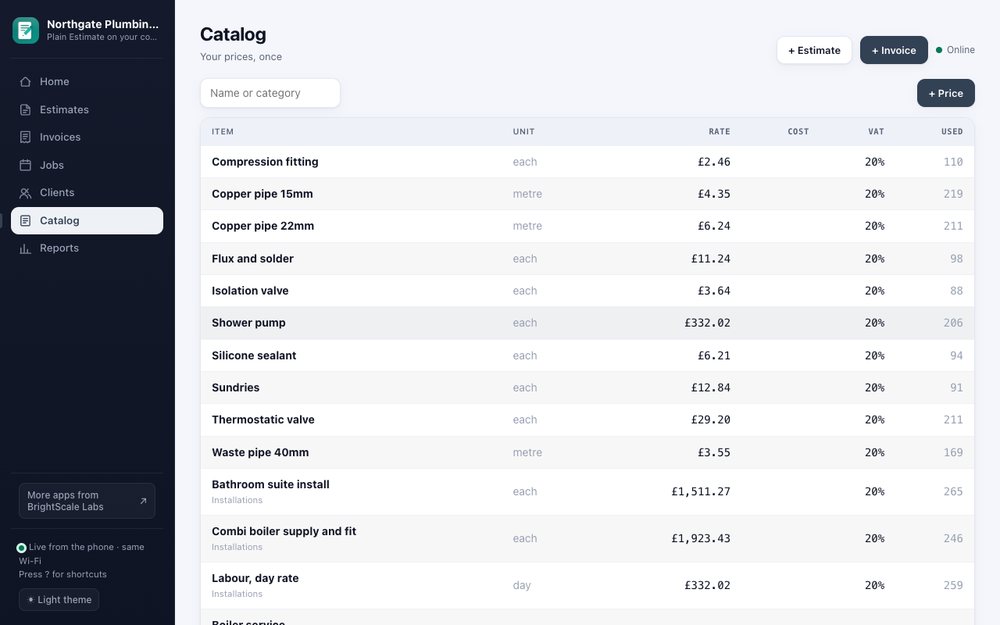
Jobs lists the work you have booked, with Open, Done and Move on each line. Clients is a table with contact details, how many documents each has and what they owe. Catalog is your price list with how often each price has been used, and a + Price button. Adding or editing many clients and prices is quicker here than on a phone.
Reports
Pick dates, or tap This year, Last year, This month or Last 90 days. The same figures as the phone sit on one screen, with downloads for the PDF report, the unpaid list, the Excel workbook and the CSVs.
What is free and what comes with the subscription
Looking at your book from a computer is free. So are clients, prices, jobs, recording payments, marking things declined or void, and deleting. Writing an estimate or invoice from the computer (creating one, adding lines, issuing it, making the invoice from an estimate, duplicating) and taking a file away (a PDF, a print preview, the workbook, the CSVs) come with the subscription. A free browser that tries one of these is told it is part of the subscription and nothing is changed. The page shows in your app’s language and starts in a light theme; the button at the foot of the menu switches between light, dark and automatic.
Good to know. If the page says “Phone not answering”, wake the phone and check that Desktop access still says Serving and that both are on the same Wi-Fi. Some guest and office networks stop devices talking to each other; use your own Wi-Fi or a phone hotspot. If a page ever looks out of date after you update the app, reload it: it reloads itself when it sees a newer version.
16. Keeping your data safe
Your book is stored on your phone, so a lost or broken phone loses it unless you have a copy. Open More, Data, Back up:
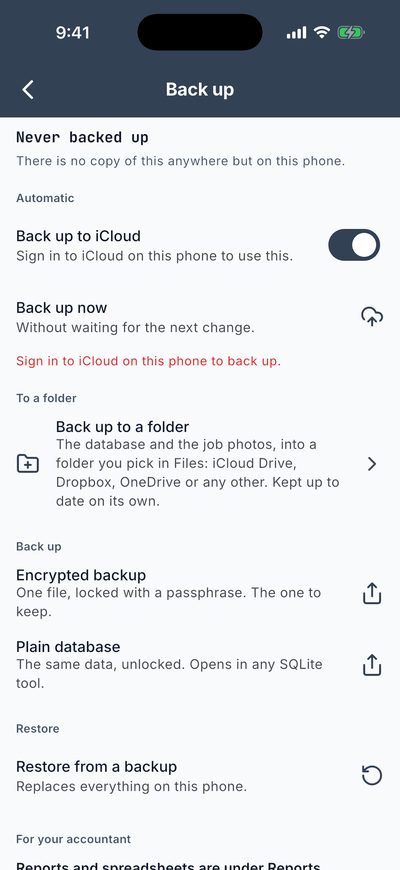
- Back up to iCloud (iPhone): a copy goes up on its own whenever something changes. You need to be signed in to iCloud on the phone. (The screen in the picture was taken on a test phone that was not.) On Android, the phone backs the app up to your Google Drive as part of its own backup.
- Back up to a folder: the database and the job photos, kept up to date on their own in a folder you pick: iCloud Drive, Google Drive, Dropbox, OneDrive or any other.
- Encrypted backup: one file, locked with a passphrase you choose. The one to keep. A forgotten passphrase cannot be recovered by anyone.
- Plain database: the same data, unlocked, which opens in any SQLite tool.
- Restore from a backup: replaces everything on the phone with a backup, after asking you to confirm.
Good to know. Backups are always free. Job photos are too big for the automatic phone backup, so use the folder backup, or save an important photo out of the app. More, Data, Storage shows what the photos take up and can clear photos that no document uses. Signatures are never cleared. Reset deletes everything on the phone and asks you to type a code first.
17. Settings worth knowing
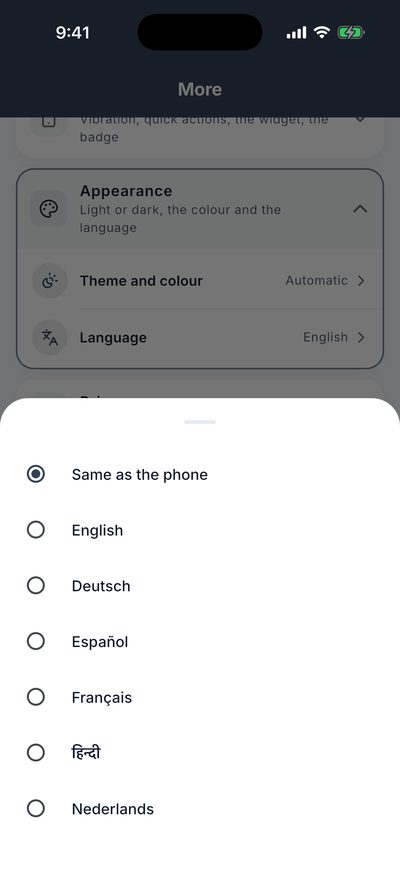
- Appearance: light, dark or automatic, and an accent colour. Language offers English, German, Spanish, French, Hindi and Dutch, or the same as the phone. Money is always shown in your document currency, whatever the language.
- Privacy: App lock asks for Face ID, a fingerprint or the passcode every time the app opens. There is no password to reset, so keep a backup. The same section holds your choices about how adverts are chosen.
- Home screen: a light vibration when you add, send or sign, quick actions when you long-press the app icon, a home-screen widget that shows what you are owed, and a number on the icon for overdue invoices.
- Database health: checks that the book is sound and quick, and tells you in plain words if it is not. It runs by itself once a day.
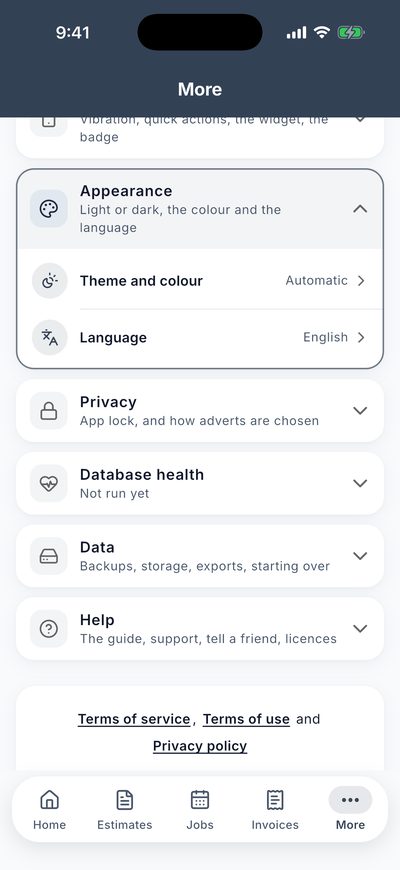
The language picker. Same as the phone is the default.
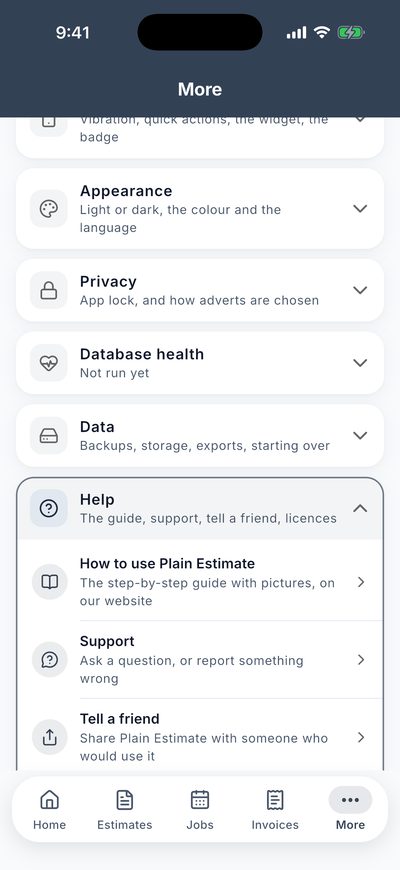
More, Help holds a link to this guide, Support (ask a question or report something wrong), Tell a friend, and the open-source licences.
18. The free version and the subscription
Plain Estimate is free to use, with nothing capped. The free version shows one banner above the tabs. When you print, share or save a PDF, you can watch a short advert to do it once, or go ad-free.
Always free
- Unlimited estimates, invoices, pro formas and credit notes, clients, prices, photos and signatures.
- Payments, reports on the screen, job reminders and the diary.
- The PDF of every document in the Classic and Steel designs. On the free version you watch a short advert to print, share or save one, and it carries a small mark.
- Backups and restoring them, including the encrypted backup.
- Looking at your book from a computer, and the daily round there: clients, prices, jobs and payments.
With the yearly subscription
- No adverts anywhere in the app.
- No “made with Plain Estimate” line on what you send.
- All 107 document designs.
- The dated PDF report, the unpaid-invoices list, the Excel workbook and the CSV exports for your accountant.
- Writing estimates and invoices from the computer, and downloading PDFs and files there.
The subscription is bought and managed through the App Store or Google Play, renews yearly until you cancel it there, and you can restore it on a new phone from the same screen. Everything you have made stays yours whether you subscribe or not.
19. Questions and problems
- The totals look wrong: check Business details: whether prices include tax, the tax rates, and the currency. A document keeps the rates it was written with, so an old estimate does not change when you change the catalog or the rates.
- I cannot find an estimate: tap the magnifying glass on Estimates and search by client or number. Check the filter: an estimate that became an invoice sits under Invoiced, and a declined one under Lost.
- A customer signed, but I need to change something: duplicate the document to a new draft rather than editing the signed one, or void it and write a new one. The signature is the record of what they agreed.
- The phone is full: More, Data, Storage shows what the photos take. Documents themselves take almost no room.
- I changed phone: restore from your encrypted backup or the folder or iCloud backup on the new phone, under More, Data, Back up, Restore.
- Desktop access will not connect: both devices on the same Wi-Fi, Desktop access started, the right six-digit code, and no guest network in the way. See part 15.
You can also use More, Help, Support in the app, or write to contact@brightscalelabs.com. Our privacy policy, terms of service and terms of use are on this site.